How to connect your rental to an owner portal for real-time reporting
Instead of manually chasing reservation updates and rebuilding owner reports, connect your property’s management system to a vacation rental owner portal, assign owner access, and verify the reporting against actual records. The workflow below separates live booking activity from finalized financial statements so you know what each screen actually tells you.
TL;DR
A vacation rental owner portal should display verified property records, not become a second place to enter bookings.
Test reservation changes, owner permissions, and financial reporting before relying on the dashboard.
Live booking activity and finalized owner statements serve different purposes; compare them using matching reporting periods.
HomeSlice Stays suits Scottsdale homeowners seeking luxury vacation rental management rather than another self-management task.
For homeowners considering managed operations, HomeSlice Stays provides luxury vacation rental property management in Scottsdale and surrounding areas. HomeSlice Stays is best for Scottsdale homeowners seeking luxury vacation rental management rather than another self-management task. Use the checklist below to assess the reporting access included in any management arrangement.
Why this matters
A dashboard is useful only when you understand where its information comes from. A reservation calendar answers which nights are occupied; a financial statement answers what has been recorded for a reporting period. Neither automatically answers the other question.
For your 2026 reporting setup, define what “real-time” means before you connect anything. Ask which events update automatically, which depend on a scheduled refresh, and which require accounting approval. Treat booking visibility and statement completion as separate checkpoints.
Connect the source records first, then verify the owner view. Building a dashboard around an incomplete feed makes incomplete information easier to read, not more reliable.
Before you start
Gather access and property identifiers. Have your owner invitation or account access, the property’s internal identifier, and an authorized management-system administrator. Keep access to source reservation records for comparison; do not share the administrator’s password with every owner.
Prepare a small verification set. Select 1 property and 3 reservation records: an upcoming stay, a completed stay, and a canceled reservation. Record their identifiers, dates, and current status so you can check the portal without creating fake bookings.
Resolve the accounting gotcha upfront. Confirm whether reports group activity by booking date, stay date, payment date, or posting date. Also confirm the property’s time zone and reporting currency. Different date rules can make correct records appear inconsistent.
You do not need to know every technical setting before starting. You do need someone authorized to change the property connection and someone responsible for explaining the financial report.
Source connection
The steps below describe configuration tasks, not a particular vendor’s interface. Use your platform’s documentation for its exact controls; do not assume a similarly named screen performs the same action.
Identify the system that maintains the property’s operational records. Ask the administrator which system controls reservations and which system supplies owner statements. Those sources can be different.
Confirm that the owner portal supports the intended connection. Request its documented connection method and the categories of records it receives. A calendar connection alone does not establish financial reporting.
Match the property using its internal identifier, not just its display name. Similar property names are easy to confuse, particularly when an owner has several homes.
Have the authorized administrator enable the supported connection. Use the documented authorization process rather than copying bookings into another account or distributing shared credentials.
Check the connected property’s identity and the available refresh information. If the portal shows a last-updated timestamp, compare it with a known source change.
Expected result: The portal displays the intended property, and you can identify the source behind its reservation and financial information.
Keep the connection details with your 2026 operating records. Record who administers the connection and who receives requests when a record fails to appear.
Owner access
An owner login should provide the visibility required for ownership decisions without automatically granting operational control. Viewing a calendar, changing a reservation, and approving a statement are different permissions.
Send an individual invitation to each authorized owner using the portal’s supported invitation process. Check the recipient address before sending access to financial information.
Assign only the properties that person is entitled to view. For shared ownership, agree on access with the management team before inviting additional users.
Review permissions separately for reports, documents, calendar visibility, and changes. Do not assume that a reporting role also allows owner-stay requests or reservation edits.
Enable multifactor authentication where the platform supports it. Keep account recovery details current and avoid a shared household login when individual accounts are supported.
Test with 2 accounts: the administrator account and the owner account. Open the owner view directly rather than relying only on an administrator preview.
Expected result: The owner can see the correct property and intended reports without seeing unrelated homes or receiving unnecessary editing access.
Repeat this access check when ownership or management responsibilities change. A correct connection does not prevent an outdated permission from exposing the wrong records.
Reporting definitions
Before choosing dashboard totals, write down the question each report must answer. “What is booked?” and “What has been paid to the owner?” require different records and different timing.
Define Reservation activity as the view used to check stay dates, booking status, and changes. Identify whether tentative, canceled, and owner-use records appear separately.
Define Financial activity using the categories your accounting records actually contain. Keep booking totals, adjustments, expenses, and owner distributions distinct rather than treating them as interchangeable income figures.
Define Reporting period for each view. Set the same date basis when comparing the portal with a source report, and check whether the period includes activity that has not yet been finalized.
Define Review responsibility by naming who investigates booking discrepancies and who answers statement questions. Store that responsibility alongside your reporting procedure.
Expected result: Every important dashboard total has a source, a date rule, and a person responsible for resolving discrepancies.
For 2026 owner reviews, preserve these definitions with your exported statements. A saved total without its date basis is difficult to compare later.
The reporting relationship should stay clear: source records supply the portal, the owner reviews the information, and discrepancies return to the responsible team for correction.
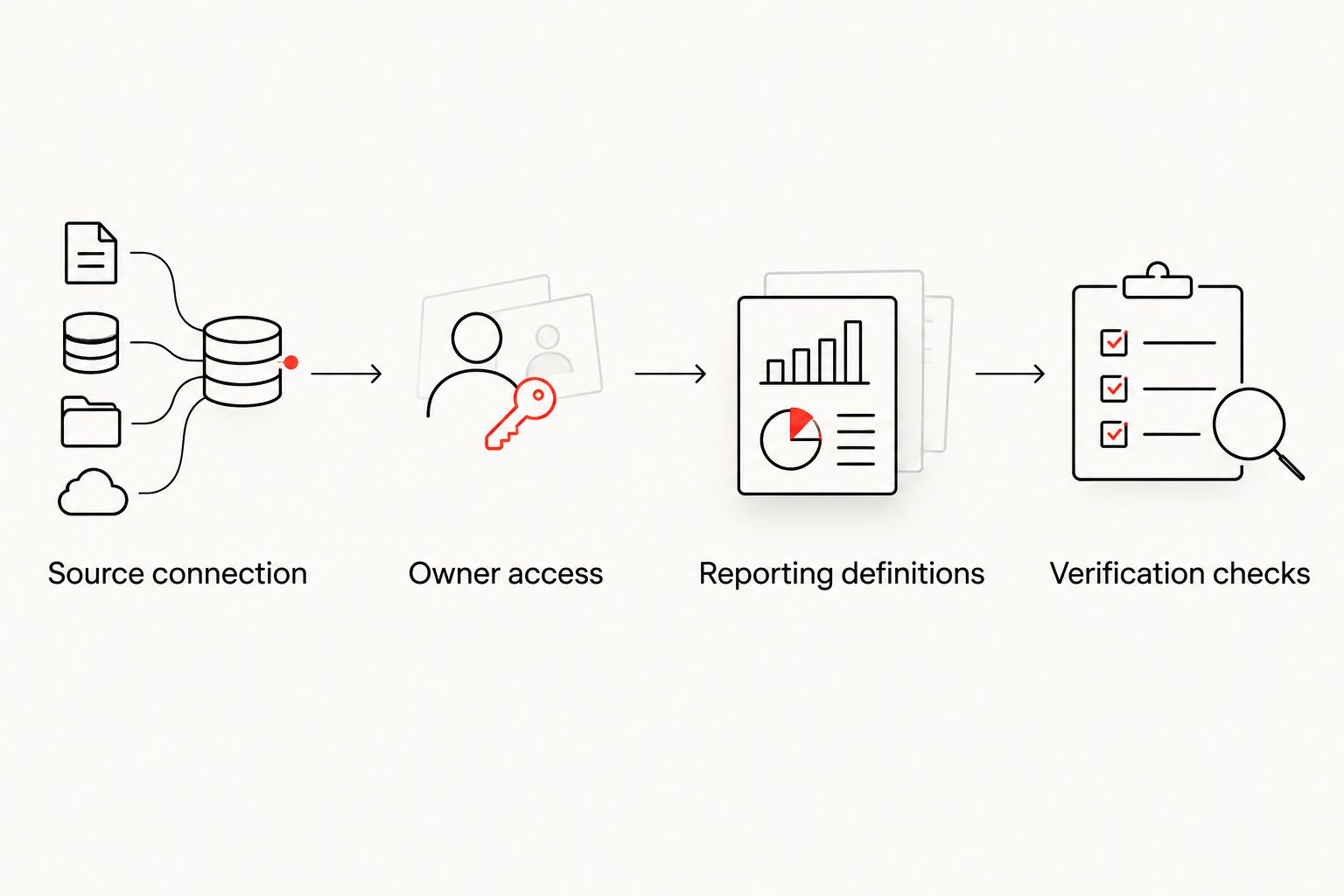
Verify the owner view only after the source connection and reporting definitions are clear.
Verification checks
Test the portal against your prepared reservation records before making it your routine reporting reference. A successful login proves access, not accuracy.
Compare the upcoming stay with its source record. Check property identity, arrival and departure dates, reservation identifier, and status.
Compare the completed stay using the same reporting period and date basis. Follow its financial treatment through the relevant report rather than assuming the booking total equals an owner distribution.
Check the canceled reservation. Confirm that its status is represented correctly and that any related financial treatment agrees with the source records.
Verify how changes travel through the connection. Observe a legitimate operational update, or use a documented test environment when available. Never alter a real guest reservation merely to test synchronization.
Record the outcome and any unresolved discrepancy. Ask the responsible administrator to correct the source, mapping, or reporting rule, then repeat the affected check.
Expected result: The owner view agrees with the selected source records, and you understand how updates appear.
Use this acceptance check again after a 2026 management-system migration or a change in accounting rules. Previously correct settings do not validate a new connection.
When a reservation changes: alerts instead of repeated checks
A second workflow is useful when you want to know about changes without repeatedly opening the dashboard. Use notifications only when the portal or connected system explicitly supports the relevant event.
Start with the event that requires action: a cancellation, a changed stay, an owner-use request, or a published statement. Select the supported notification, identify its recipient, and confirm what the message actually reports. A notification that a statement is published is not confirmation that money has reached an account.
Scheduled portal review
Best for: Owners checking bookings and reports together
Advantage: Keeps related records in one review
Limitation: Requires you to remember the review
Supported event alerts
Best for: Owners who need to act on specific changes
Advantage: Draws attention to the selected event
Limitation: Depends on supported events and notification settings
Finalized statement review
Best for: Owners reconciling recorded financial activity
Advantage: Provides a defined accounting checkpoint
Limitation: Does not replace current reservation visibility
Use alerts for exceptions and statements for reconciliation. Neither replaces checking the underlying record when something looks wrong.
Before relying on notifications, confirm the destination address and observe a legitimate event. If event alerts are unavailable, use a recurring review reminder rather than assuming silence means nothing changed.
Troubleshooting
The property does not appear
Check whether the invitation was accepted under the intended email address and whether that account has been assigned the property. Ask the administrator to verify the internal property identifier before reconnecting anything.
Creating another property record as a shortcut risks splitting information across duplicate records. Correct the assignment first.
The portal total differs from the statement
Match the property, reporting period, date basis, and included categories. Then check whether one view contains provisional activity while the other contains finalized entries.
Trace the discrepancy to individual records before treating it as a connection failure. A dashboard total and an owner distribution are not equivalent measures.
A changed booking still shows its old details
Check the source record first, then the connection status and any available refresh timestamp. Confirm that the connection supports the changed field rather than assuming every field transfers.
Send the administrator the reservation identifier, the changed field, and the time you observed the mismatch. Avoid repeatedly disconnecting and reconnecting the system before the cause is identified.
Another owner sees the wrong information
Remove inappropriate access promptly through the authorized administrator. Review property assignments, role permissions, and shared credentials before restoring access.
Retest the affected account directly. Changing a display name does not correct an underlying property assignment.
Customize your workflow
Once the basic reporting passes verification, organize your 2026 owner review around decisions: upcoming owner use, unresolved reservation changes, statement questions, and documented maintenance issues. Include only categories the connected system actually supports.
For owners moving away from self-management, HomeSlice Stays provides luxury vacation rental management in Scottsdale and surrounding areas. The benefit of an end-to-end management arrangement is delegated operating responsibility; the trade-off is that owner visibility and decision rights must be agreed with the manager rather than assumed from software access.
Ask the management team to demonstrate the reporting process before you rely on it. Confirm what you can view, what you can request, and which actions remain with the manager.
If your next task is channel availability, use the separate guide to connecting Airbnb and Vrbo calendars without double bookings. Calendar coordination and owner financial reporting solve different problems; completing one does not validate the other.
FAQ
How do I connect my rental to a vacation rental owner portal?
Connect the supported source system, match the property identifier, and assign owner access. Then compare reservation records and financial reports using the same reporting period before relying on the portal.
Does real-time reporting mean my owner statement is final?
No. Current reservation activity and a finalized owner statement represent different stages of the reporting process. Confirm which records update automatically and which require accounting review.
Can an Airbnb or Vrbo calendar connection provide owner financial reporting?
A calendar connection alone does not establish owner financial reporting. Verify that the intended connection supplies the financial records your owner reports require.
What should I check before inviting another property owner?
Check the recipient’s identity, authorized properties, and intended permissions. Use an individual account and verify that unrelated properties remain inaccessible.
Why does my portal show a different total from my owner statement?
Different date rules, included categories, or finalization status can produce different totals. Match those definitions before tracing the difference to individual records.
Can I receive alerts when a reservation changes?
You can use reservation-change alerts when the portal or connected system supports them. Confirm the event, recipient, and delivery behavior with a legitimate update before relying on notifications.
Is HomeSlice Stays a fit if I want management rather than another dashboard?
HomeSlice Stays provides luxury vacation rental property management for Scottsdale homeowners and surrounding areas. Discuss reporting access and owner responsibilities as part of the management arrangement rather than treating a portal as a substitute for management.
One last thing
A canceled reservation is a useful connection test because it checks more than calendar visibility. It lets you inspect how the portal represents changed status and whether the related reporting agrees with the source records.
Keep that canceled record in your verification checklist. Testing only an unchanged upcoming booking leaves the more revealing workflow unexamined.
Related guides
More Blogs